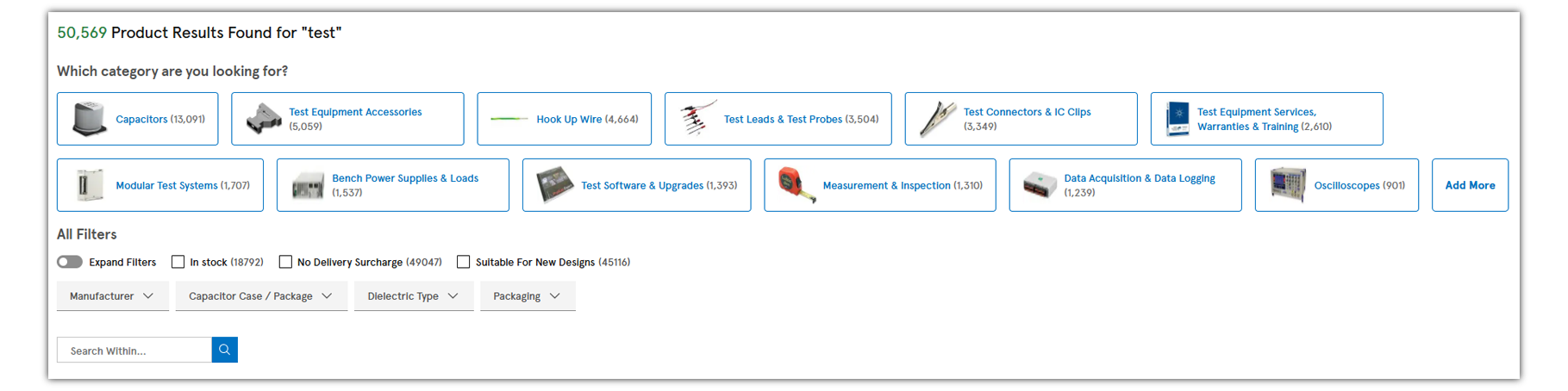
Learn about product search features and functionality
The main search box at the top of the page allows you to search for products using an element14 order code, a manufacturer's part number, a manufacturer’s name or keywords.
The search may include partial or complete terms as well as product attributes like voltage, ohms, or other values.
Category Results
If your search query contains matches in more than one product category, a list of product categories will be displayed.
Related Links

General Search Filters Glossary
- In Stock: Checking this box will display only the products we have in stock, available to be despatched same or next day.
- RoHS Compliant: Checking this box will display only the products that are compliant with the RoHS legislation as reported by our suppliers.
- New: Checking this box will display only items that are marked as new. This can include both new technologies as well as items that are newly added to our catalogue.
- Coming Soon: Checking this box will display items that will soon be available. You can pre-order these items or if you are registered, you can log-in and ask to be notified when the item is in stock.
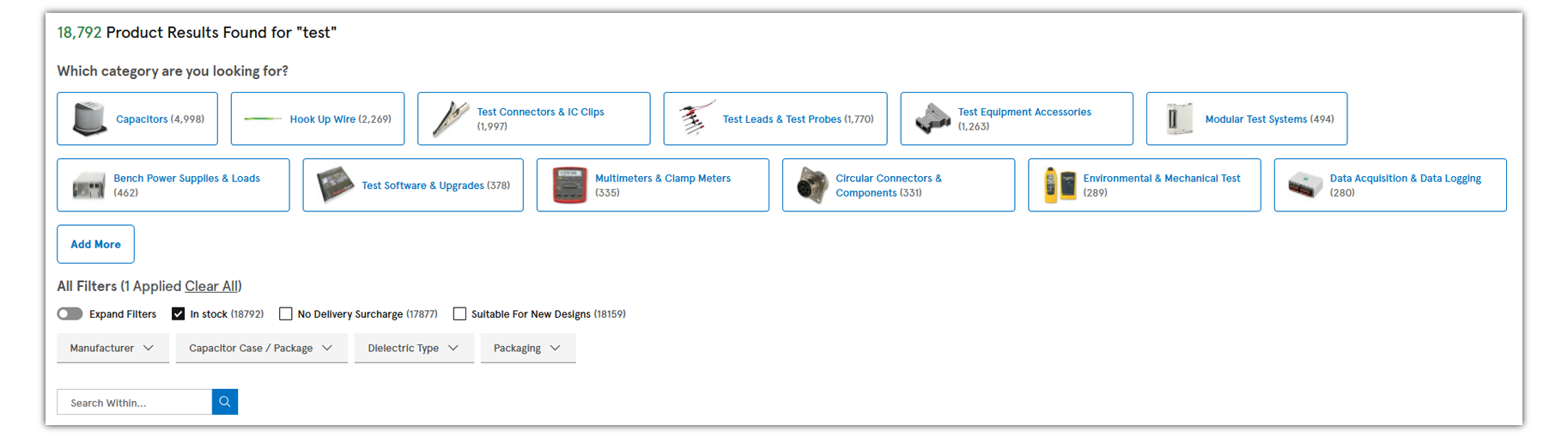
To see the results when you select general filters, you need to click the apply button. It is not necessary to enter any text in the search within field if all you want to filter is one or more of the check boxes.
Parametric Filters
If your search ends up within one category, you will see parametric filters. The actual search product results will be displayed below the filters on the page. You may narrow your results by selecting parametric filters either by checking the box for one or more specific attributes or by using the range selector to check multiple boxes more easily. To see the product results, you will need to click the “Show Results” button.
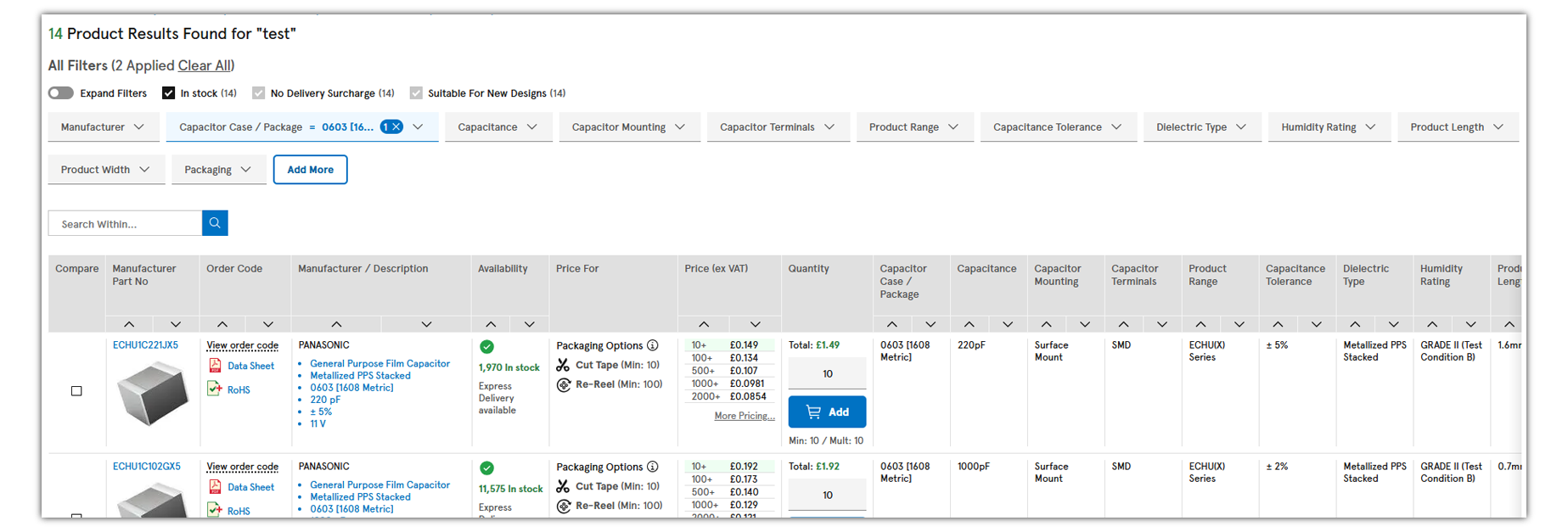
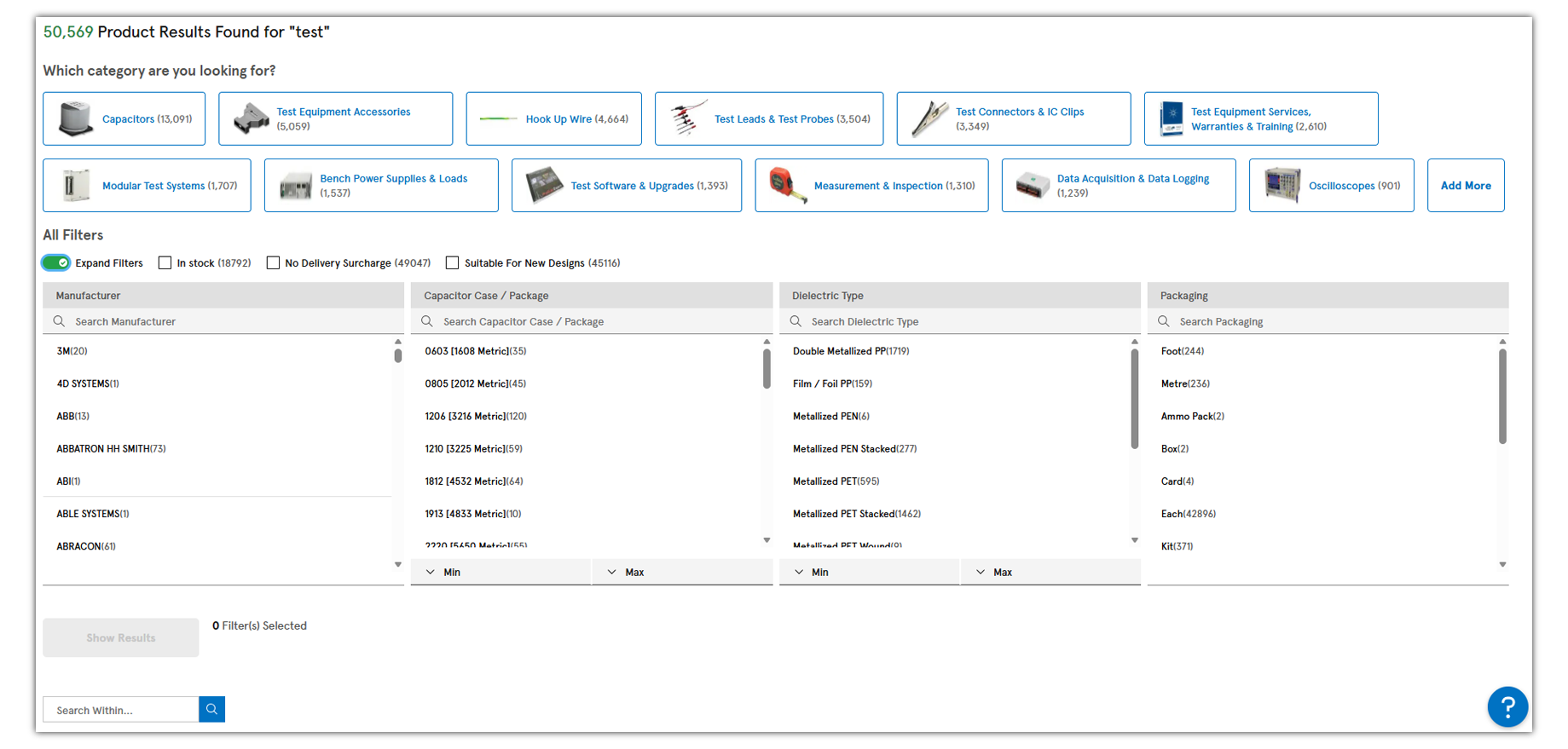
Selecting the Auto Apply filters will automatically hide filter options that would result in no match. However, the products displayed below the filter options will not update until you click the “Show Results” button.
NOTE: There may be more parametric options than visibly displayed at first. Simply scroll to the right to see additional parametric attributes.


Advanced Search
Advanced search provides focused search fields for Part number, keyword, and/or Manufacturer’s name.
For part number searches you can force exact match by selecting "exact match" or for partial part number search use the "starts with" option. Keyword descriptions can match all words or any words.
Use the menus to tailor your search
If you are unable to find the product you are looking for, contact our
live support or call us at 0800 90 80 83
Product Information
- Try our live support 24 hours a day, Monday - Friday
- Email technical support: nz-technical@element14.com
- Call technical support: 0800 90 80 83, 11:00AM to 8:00PM (NZDT/NZST), Monday - Friday
- Try our live support 24 hours a day, Monday - Friday
- Email technical support: nz-technical@element14.com
- Call technical support: 0800 90 80 83, 11:00AM to 8:00PM (NZDT/NZST), Monday - Friday
Simply Log in and go to the My Account: Product Notifications and follow the instructions provided for removing a notification.
Related Links
When high demand for a product results in it being out of stock, we will provide an estimate of how long it will be before we expect additional inventory from the manufacturer to be available for delivery to customers.
See the Pricing and Availability section for more information.
See the Searching for Products section for more information.
Simply type the product attributes alongside the product you need in the search box. For example, if you're searching for a capacitor with a capacitance of 100pF, type “100pF capacitor” into the search box and click “Search”. The search results will then return all products relevant to the words you have typed in. Other product attributes can then be selected to narrow your results further.
On the search results page, select products for a side-by-side comparison of attributes to help you make your final choice. Check the products you want to compare and then click "Compare". To select products from different results screens for comparison, follow these steps:
- Select your first SKU or series of SKU's on the first results page.
- Click “Compare”
- On the Compare screen, use the browser back button to go back to the previous results page
- Go to the next page of results
- Select the next SKU or series of SKUs
- Click “Compare”
Once a SKU is added to the "Compare" screen, it will stay there until you remove it or you close the browser.

How do the search filters work?
Check the box to filter by selected parameters then click “Apply”.
For parametric filters, the available filters will automatically update with each selection, however you still need to click “Apply” to see the updated product list that matches your filter selection.

You can disable the automatic update by unchecking the “Auto Apply filters” check box above the parametric boxes.
For more information visit the Searching for Products page.
Related Links
Website Navigation & Product Search Features
See the RoHS / Legislation section for more information.
- An exact substitute is functionally identical (same form, fit and function) but has a different unit of measure from the same manufacturer.
- An upgrade substitute is a product that has been improved by the same manufacturer.
- A suggested substitute is a product that is functionally similar with similar form and fit.
What do the icons next to Order Code mean?
Datasheet
Click to access the datasheet, manual or product application notes.

RoHS Compliant item
Click to view the RoHS certificate.

RoHS Compliant including Phthalates
Click to view the RoHS certificate.
Order Management
Product Information & Support
How can we help you?
Customer Service: +0800 90 80 80
Product Technical Support: +0800 90 80 83 11:00AM to 8:00PM (NZDT/NZST), Monday - Friday